Want to hike a trail with your wrist? Waypoint is free on TestFlight: turn to aim, step, and reach the summit. Join the beta (version 1.0 (9); this invitation is good through January 11, 2027).
Works on Apple Watch and iPhone, and plays fully on Apple Watch with no iPhone needed. On iPhone Duo it fills both screens.

Need a hand on the trail? Start here.
How do I steer?
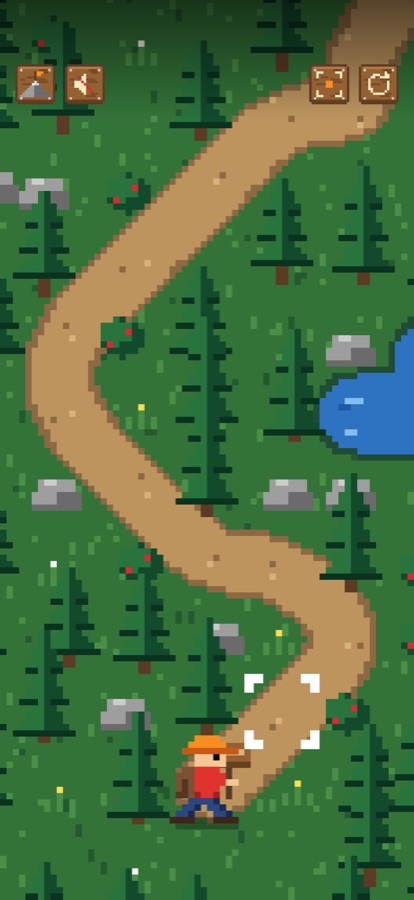
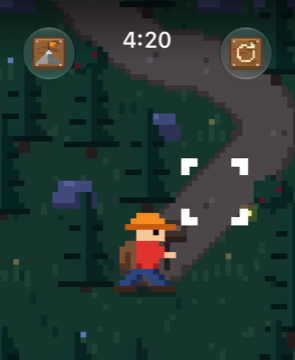
Face the direction you want to walk. The corners around the next square show where your next step will land: white means you can walk there, red means it's blocked. On Apple Watch, turn the Digital Crown to take a step. On iPhone, hold the phone flat like a compass and tap to step.
The hiker walks the wrong way, or the direction jumps around
The compass can be thrown off by magnets, metal, speakers and cars.
- Step away from metal objects and magnetic cases or bands, then try again.
- On iPhone, make sure Settings → Privacy & Security → Location Services → System Services → Compass Calibration is on, then move the phone in a figure-eight a few times.
- Facing exactly between two directions can feel undecided. Turn a little further and the marker will settle.
Turning the Digital Crown doesn't take a step
Tap the trail once, or press Restart (the circular arrow), then turn the Crown again. If it still doesn't respond, close the app and reopen it.
Do I need an iPhone to play on Apple Watch?
No. Waypoint runs fully on Apple Watch.
Is my progress shared between iPhone and Apple Watch?
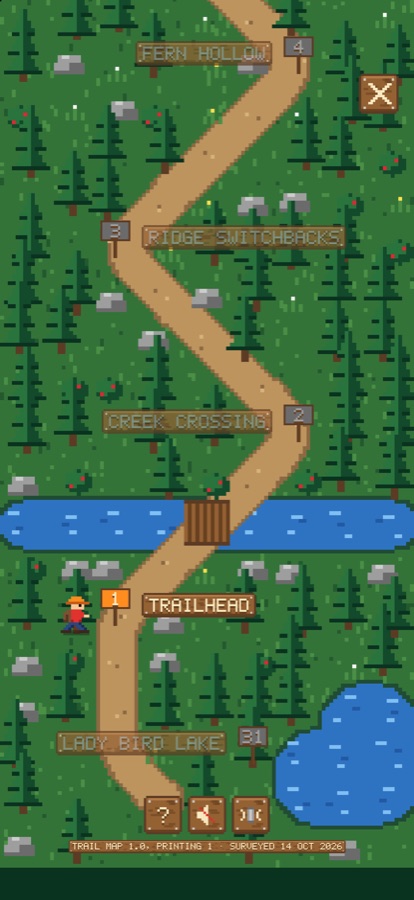
Not yet: each device keeps its own trail progress. Every trail is included on both, with nothing extra to buy.
Does Waypoint track my location?
No. It reads only your compass heading, on your device, to aim the hiker. Nothing is collected or sent anywhere. See the Privacy Policy.
Requirements
iOS 17 or later; watchOS 10 or later; a device with a compass.
Contact
Still stuck, found a bug, or have an idea for a trail? Email studio@releaf.site and we'll get back to you.